
How to Hide App in Android Phone
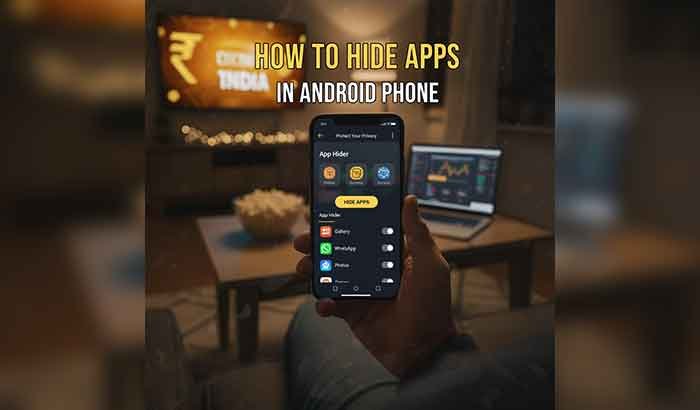
How to hide app in Android phone, our smartphones carry a lot of personal and sensitive information. From messaging apps and banking apps to photos and social media, it’s natural to want some apps to remain private. That’s where hiding apps comes in. If you’ve ever wondered how to hide app in an Android phone, you’re in the right place. We’ll cover all the methods, built-in settings, third-party tools, and launchers, so you can keep your apps secure and your phone organized.
Why Hide Apps on Android?
Hiding apps on Android helps protect your privacy and personal information from unauthorized access. It keeps sensitive apps like banking, messaging, and social media secure. Hiding apps also declutters your home screen, making your phone organized and easier to use. Parents can use app hiding to control access for children, How to hide app in Android, while professionals can secure work-related apps. Overall, hiding apps on Android enhances security, privacy, and device management efficiently. Why people hide apps in the first place:
- Privacy: Keep apps like messaging, social media, and banking private.
- Security: Protect sensitive information from unauthorized access.
- Declutter Home Screen: Hide apps you rarely use without uninstalling them.
- Parental Control: Restrict access to certain apps for kids.
Hiding an app doesn’t delete it. It simply removes it from the home screen or app drawer, making it less visible while still accessible.
Read More: Seekho App Kya Hai: Features, Benefits & Uses
What Does “How to hide app in Android” Mean?
Hiding apps on Android means making them invisible in the app drawer or home screen without uninstalling them. Hidden apps can still function normally and send notifications (unless muted). Depending on your phone’s brand and Android version, hiding apps can be done using:
- Built-in phone settings (no apps needed)
- Launchers (custom home screen apps)
- App hider tools or vault apps
Built-in Methods to How to hide app in Android
Many Android phones now offer built-in hiding options. Here’s how to use them depending on your brand:
Samsung (One UI)
- Long-press on the Home Screen.
- Tap Home Screen Settings.
- Select Hide Apps.
- Choose the apps you want to hide.
- Tap Done.
Xiaomi / Redmi / POCO (MIUI)
- Open Settings → Apps → App Lock.
- Turn on App Lock if not already activated.
- Tap Hidden Apps.
- Select apps to hide.
OPPO / Realme (ColorOS)
- Go to Settings → Privacy → Hide Apps.
- Select the apps you want to hide.
- Set a passcode and dial pad access code (e.g., #1234#).
Vivo (Funtouch OS)
- Open Settings → Privacy and App Encryption.
- Enable Hide App Icons.
- Choose apps to hide and set a password.
Using Launchers to Hide Apps
If your phone doesn’t have a built-in hiding feature, you can use a custom launcher. How to hide app in Android, Launchers are apps that replace your home screen and app drawer, offering more control over appearance and app management.
Popular launchers:
- Nova Launcher (paid version supports app hiding)
- Apex Launcher
- Microsoft Launcher
Steps (example for Nova Launcher):
- Install Nova Launcher.
- Open Nova Settings → App & Widget Drawers → Hide Apps.
- Select the apps you want to hide.
Using App Hider or Vault Apps
For advanced privacy, some users prefer apps that clone and hide apps inside a disguised interface.
Popular tools:
- App Hider
- Calculator Vault
- Parallel Space
How they work:
- Clone apps inside the hider app.
- Disguise the app as a calculator or notes app.
- Protect hidden apps with a password or fingerprint.
Hide Apps Without Apps or Launchers
You can also hide apps using other tricks:
- Disable apps: Some system apps can be disabled in Settings → Apps → [App Name] → Disable. They won’t show on the home screen.
- Guest Mode / Private Space: Some phones let you create a private user space with only selected apps.
- Folders: Move sensitive apps into a folder and hide the folder on a separate home screen.
Phone Manager all devices
Phone Manager APK is a versatile Android tool compatible with all Android devices, designed to help users How to hide app in Android, secure private information, and optimize phone performance. With Phone Manager, you can easily hide apps like messaging, social media, or banking without rooting your device, making it ideal for personal privacy. To set it up, download the APK from a trusted source, enable installation from unknown sources in your phone settings, and install the app. Once installed, open Phone Manager, go to the app management section, and select the apps you want to hide.
You can also secure hidden apps with a PIN or fingerprint for added protection. The app works across devices from brands like Samsung, Xiaomi, Vivo, OPPO, Realme, and more. Besides hiding apps, Phone Manager helps clean junk files, boost battery life, and manage background apps for smoother performance. Overall, it is an all-in-one solution for Android users seeking privacy, security, and efficient phone management.
How to Hide Apps on iPhone
Hiding apps on an iPhone helps protect your privacy and keep your home screen organized. Unlike Android, iPhones don’t have a dedicated “hide app” feature, but you can hide apps using App Library, Folders, or Screen Time restrictions.
Methods to Hide Apps on iPhone:
- Use App Library: Remove apps from the home screen while keeping them in the App Library.
- Create Folders: Place apps inside folders and move them to less visible pages.
- Screen Time Restrictions: Go to Settings → Screen Time → Content & Privacy Restrictions → Allowed Apps to hide built-in apps.
- Offload Unused Apps: This removes the app from the home screen but keeps data intact.
Tips to Keep Hidden Apps Secure
Protect your privacy by using app lock or fingerprint protection for all hidden apps. Regularly check and update your hidden apps, avoid suspicious third-party tools, and ensure Android security settings are always up to date.
- Use App Lock: Lock hidden apps with a password or fingerprint.
- Avoid third-party apps with excessive permissions.
- Regularly check hidden apps: Ensure no app has accidentally become visible.
- Update Android and apps: Security patches keep your apps safe.
Wrapping Up
Hiding apps on your smartphone is an essential step to protect privacy, security, and personal information. Whether you are using an Android device with Phone Manager APK or built-in settings, or an iPhone using App Library and restrictions, these methods help keep sensitive apps safe and your home screen organized. By following the step-by-step guides, securing hidden apps with PINs or fingerprints, and managing device settings properly, you can enjoy a clutter-free, secure, and private mobile experience. Start hiding your apps today and take full control of your phone’s privacy.
FAQs About How to Hide App in Android
Q1: Can hidden apps still send notifications?
Ans: Yes, hidden apps can still send notifications unless notifications are turned off.
Q2: Can I hide pre-installed apps?
Ans: Some pre-installed apps can be hidden or disabled. Others cannot be hidden without root access.
Q3: How do I unhide apps?
Ans: Go to the same menu where you hid them (or the app hider tool) and select “Unhide.”
Q4: Does hiding apps affect storage or updates?
Ans: No, hidden apps remain installed and update normally.